Inside your store

Easy for you. Effortless for your customers.

This is what the Waveform License Manager looks like in WooCommerce and in Shopify: the screens you use to set it up and run it, and everything your customer sees, from checkout to moving to a new computer.

Every screen on this page is the real plugin, app, email and activation screen, shown with sample data. Select one to see it full size.

For you, the store owner

Set up in minutes. Then it runs itself.

No code in your store, no license server to host. You connect your store, choose which products sell a license, and every order from then on is handled for you.

01

Install and connect

Upload the plugin in WordPress like any other. Paste the merchant key from your account into Waveform › Settings, press Test connection, and you are live.

Install the app from the Shopify App Store. It connects itself, so there is no key to paste, and a short Get started guide on the app's home screen walks you through the rest.
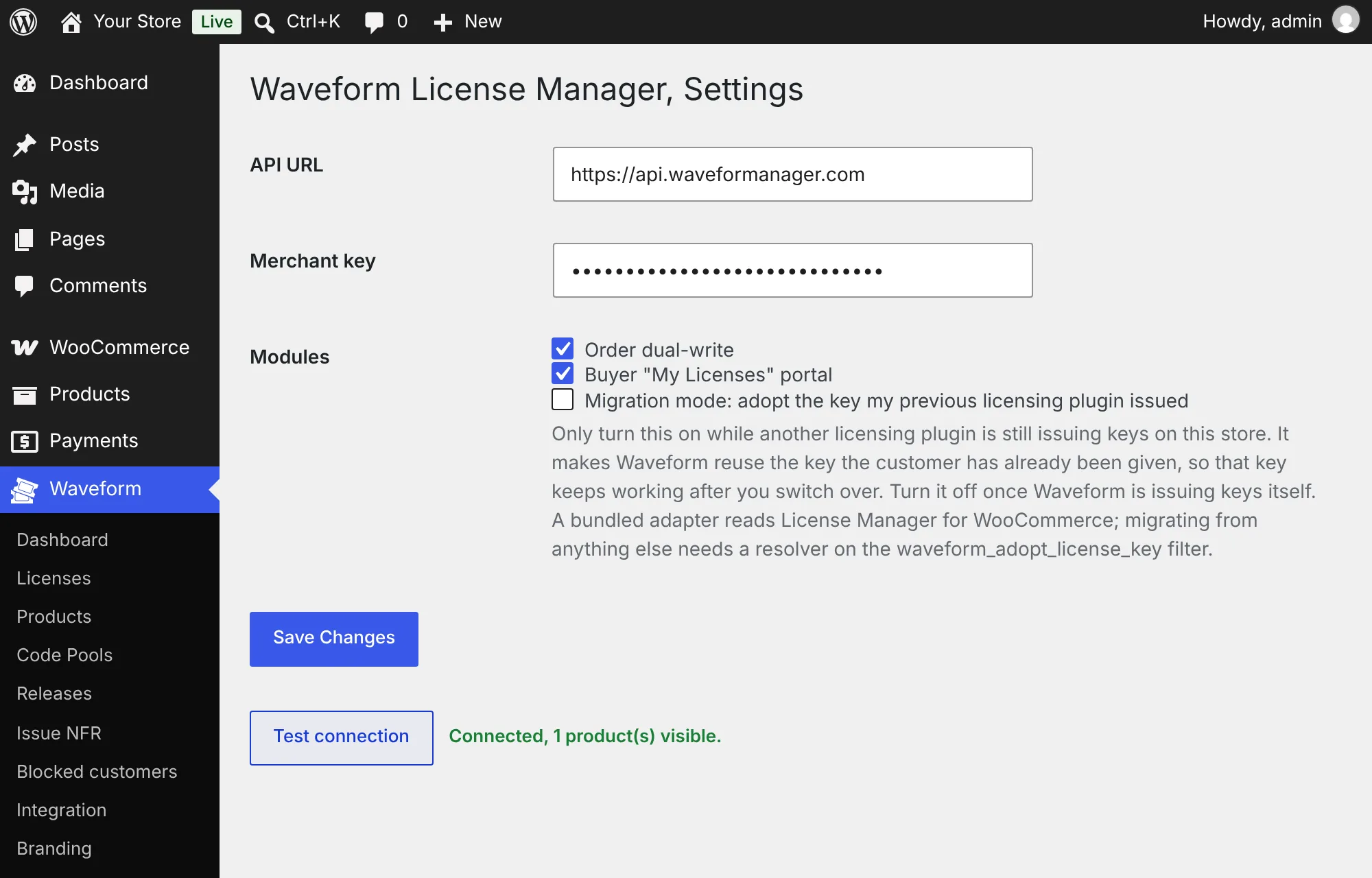
The plugin's Settings screen in WordPress: the API URL and merchant key filled in, the order and My Licenses modules switched on, and Test connection reporting Connected, 1 product(s) visible.
WordPress, Waveform › Settings, after Test connection.
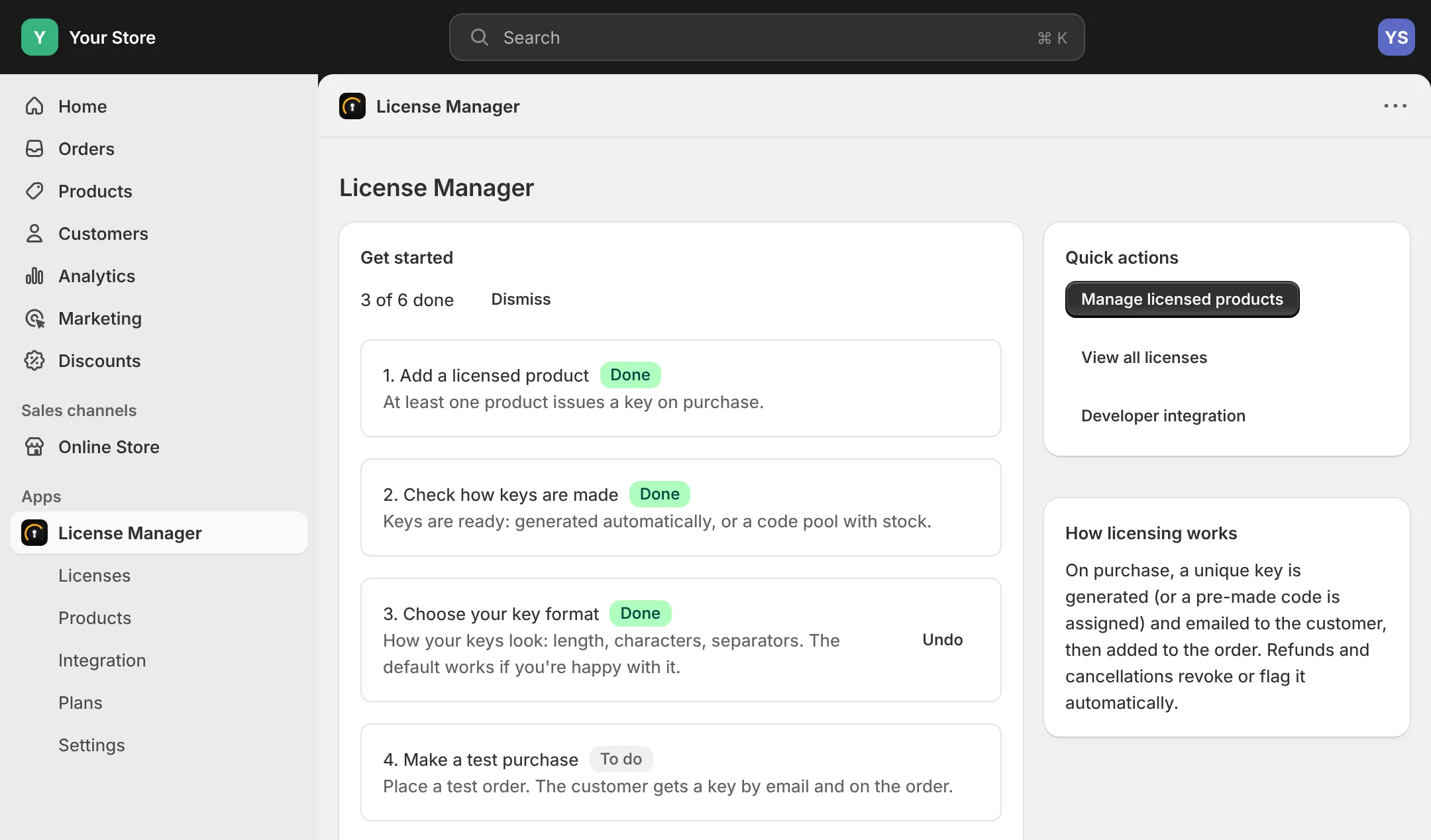
The app's home screen in Shopify admin: the Get started guide at 3 of 6 done, with adding a product, checking how keys are made and choosing a key format done, and a test purchase next.
Shopify admin, the app's home screen and its Get started guide.
02

Choose which products sell a license

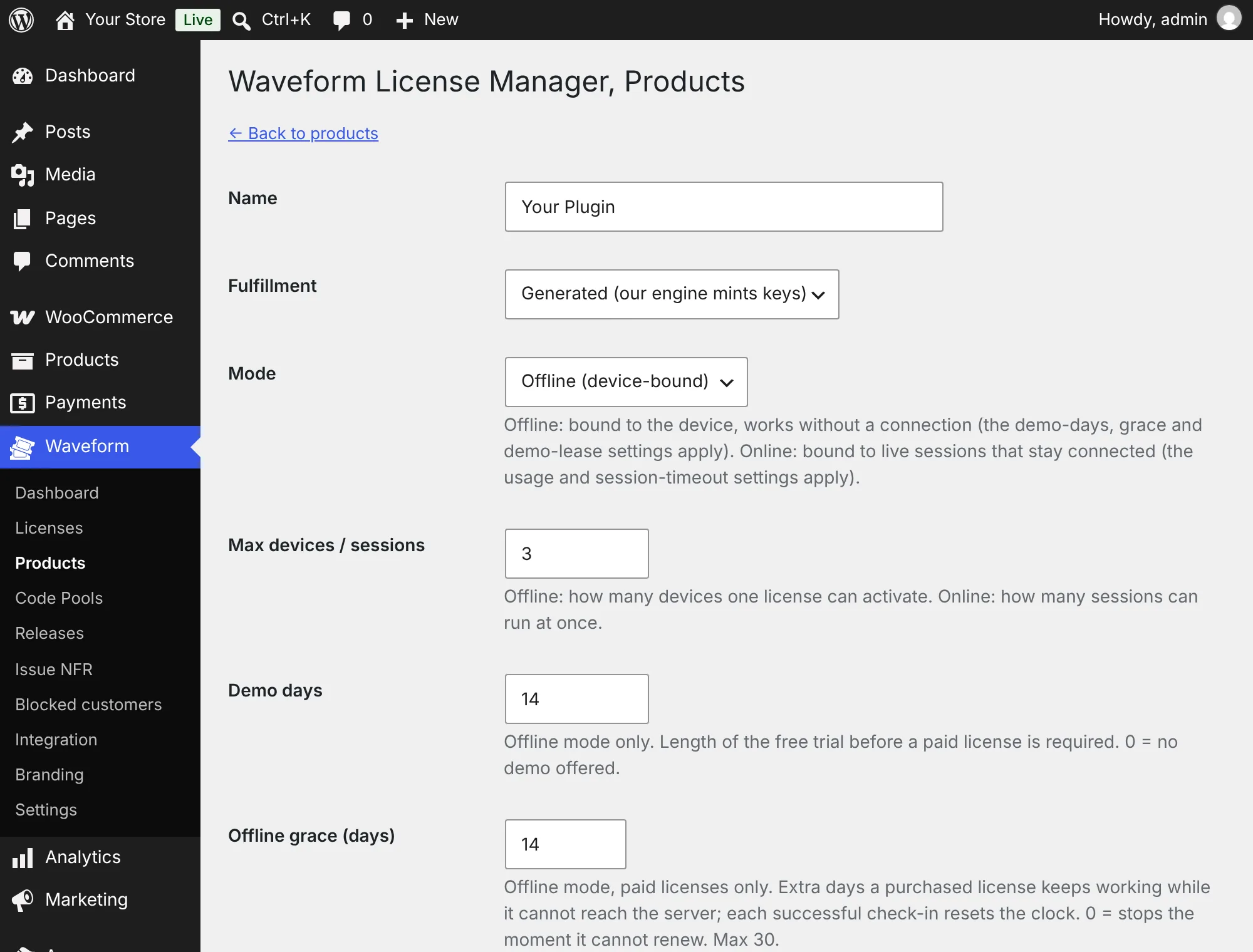
Under Waveform › Products, add any of your WooCommerce products that has a SKU. It starts with sensible defaults, offline, three devices and a 14-day demo, and you can change any of them.

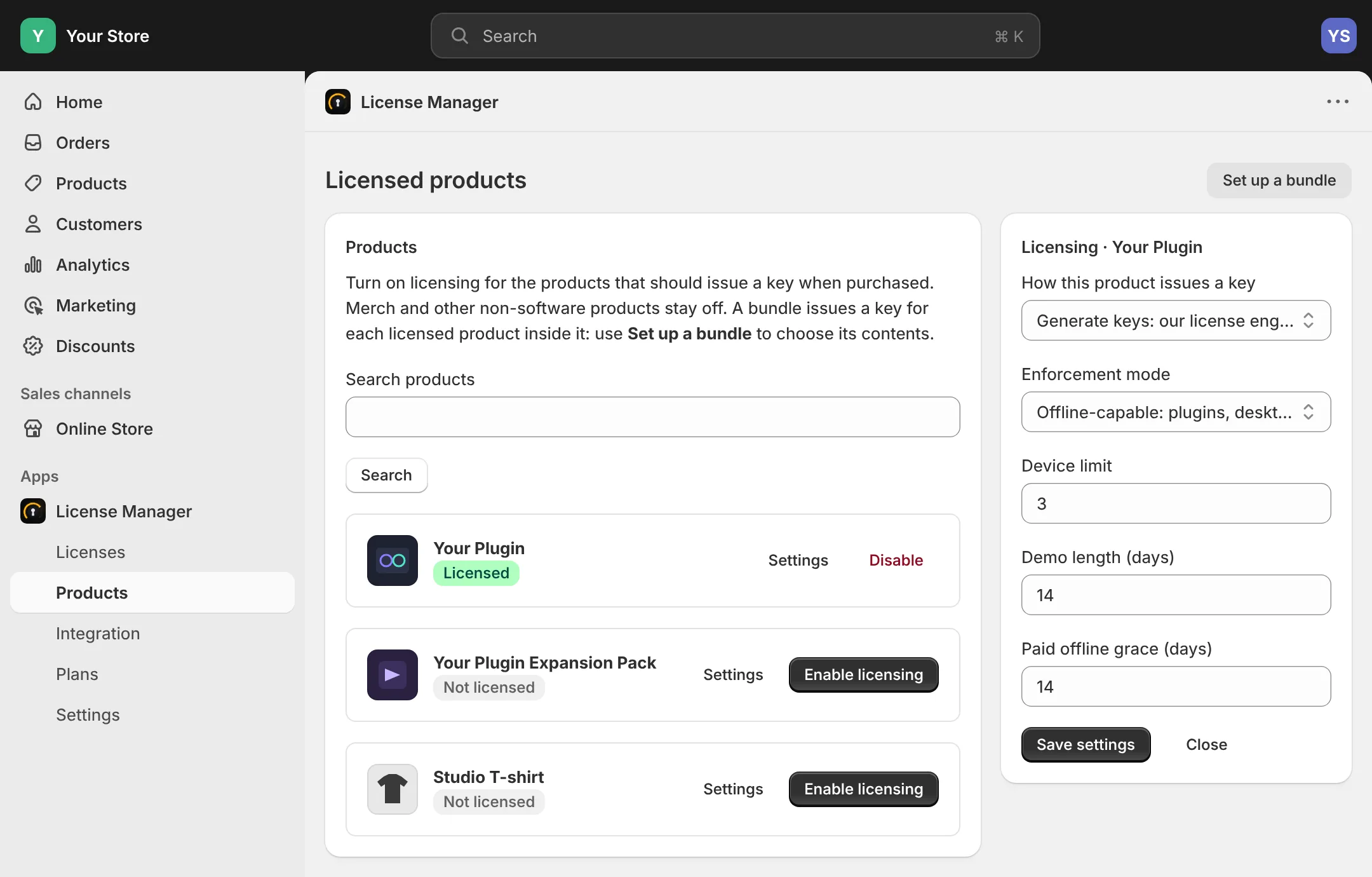
On the app's Products page, turn on licensing for the products that sell a key and leave merch off. Each one has its own settings: keys generated for you or drawn from codes you upload, offline-capable for plugins and desktop apps or always online for web apps, a device limit and a demo length.

Editing a product under Waveform, Products in WordPress: fulfillment set to generated keys, mode Offline (device-bound), 3 devices, a 14-day demo and 14 days of offline grace.
WordPress, Waveform › Products, editing one product.
The app's Licensed products page in Shopify admin: Your Plugin is licensed, an expansion pack and a T-shirt are not, and the settings panel shows generated keys, offline-capable enforcement, a device limit of 3 and a 14-day demo.
Shopify admin, the app's Products page.
03

Every paid order gets a key

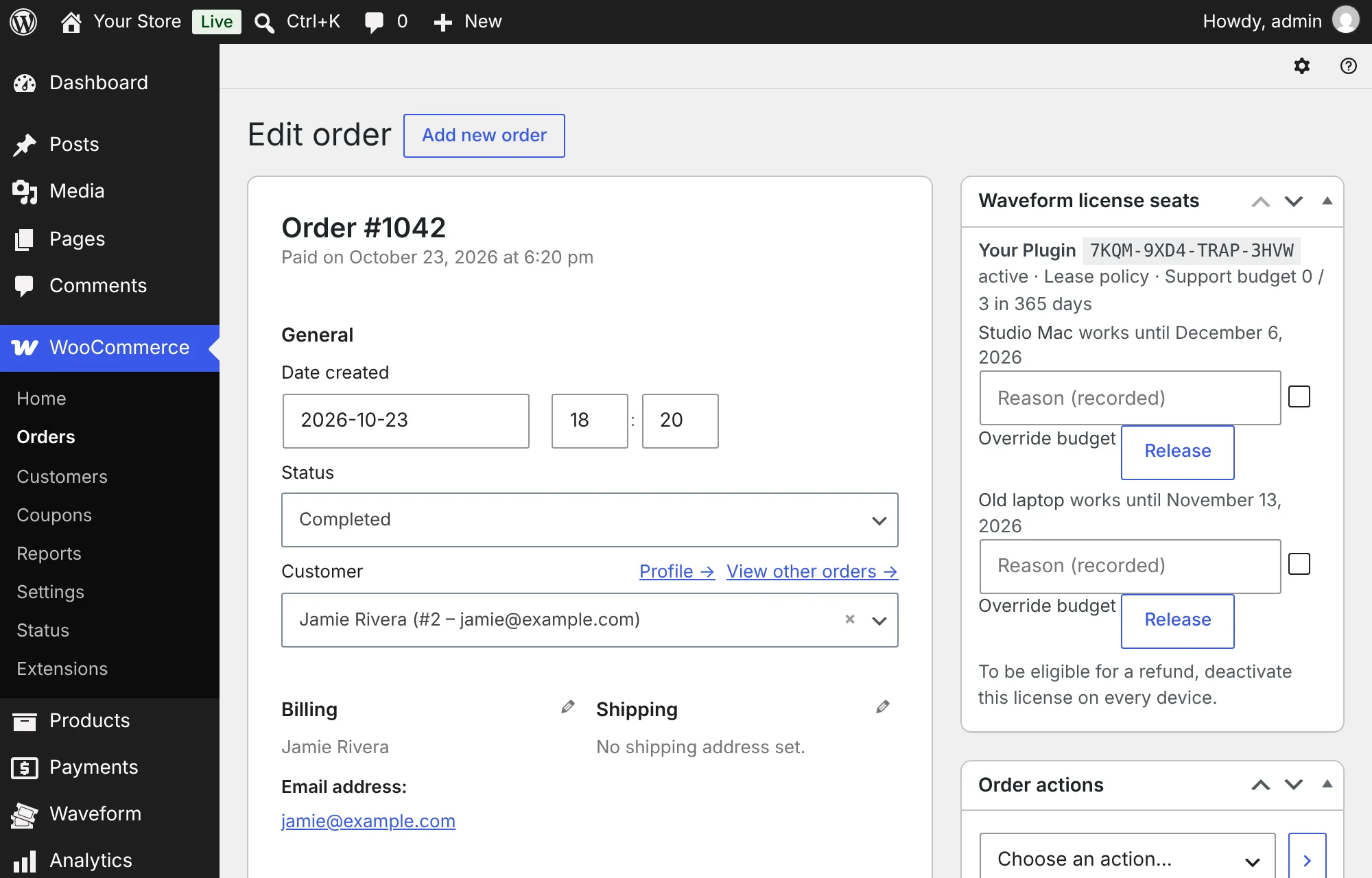
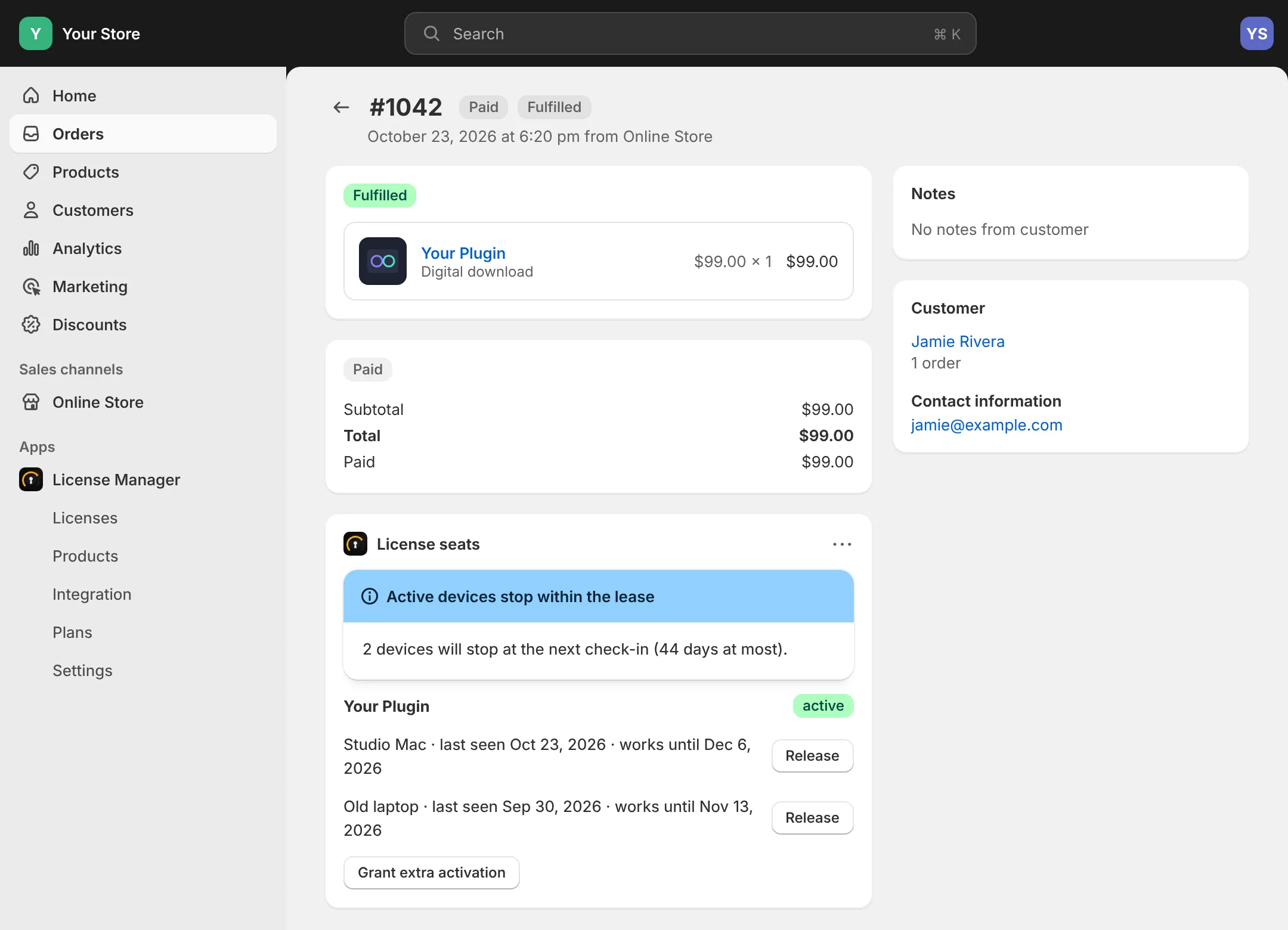
When an order is paid, the key is created, emailed to your customer and recorded on the order. A refund or cancellation revokes it on its own. The order screen shows which devices each key is on, and you can free one up when a customer asks.

A completed WooCommerce order with the Waveform license seats box: the key, the lease policy, and two devices, Studio Mac and Old laptop, each with a Release button and a reason field.
WordPress, a WooCommerce order with the Waveform license seats box.
A paid Shopify order with the License seats block: a note that active devices stop within the lease, and two devices, Studio Mac and Old laptop, each with a Release button, plus Grant extra activation.
Shopify admin, an order with the License seats block.
04

See everything at a glance

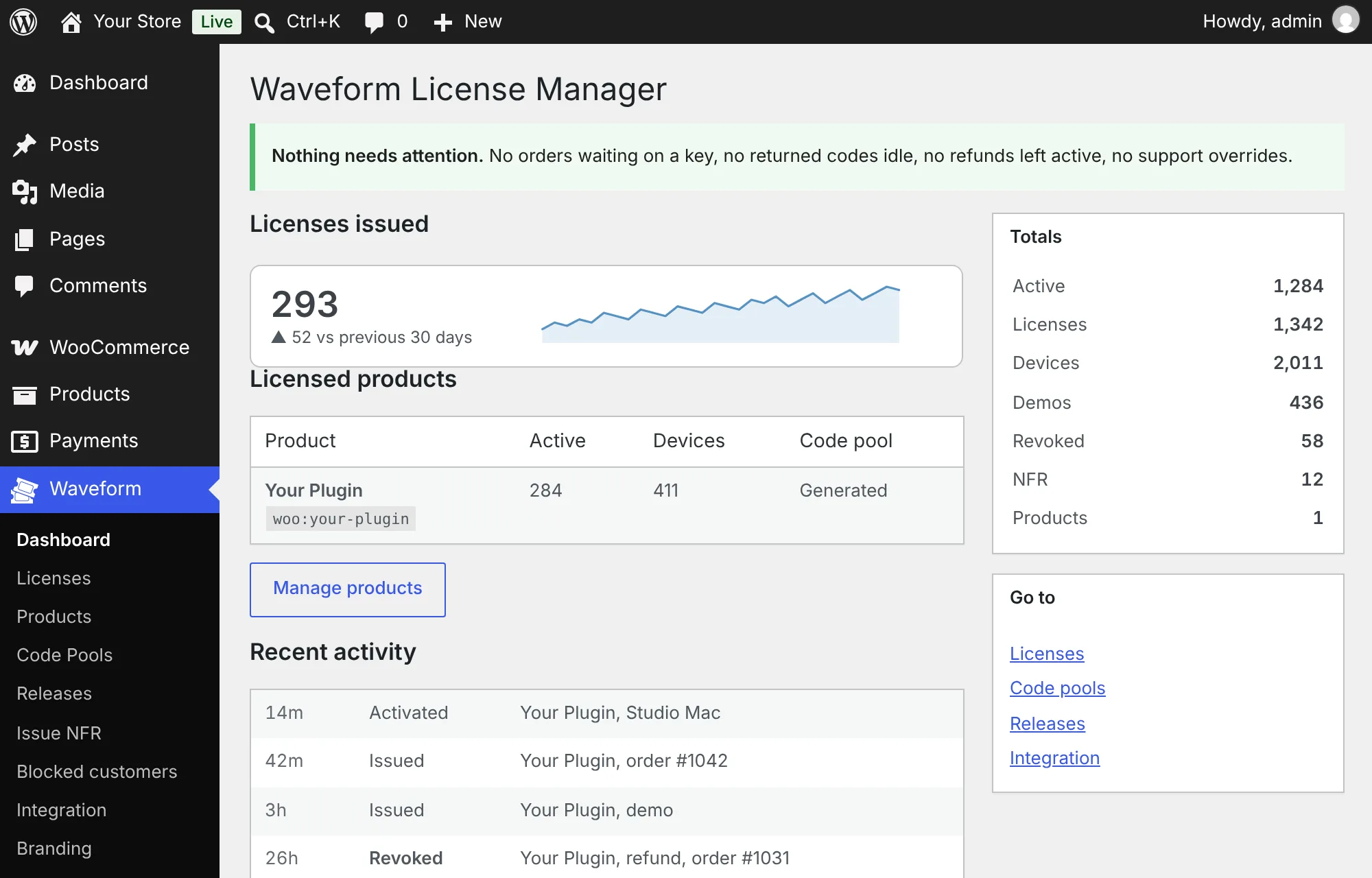
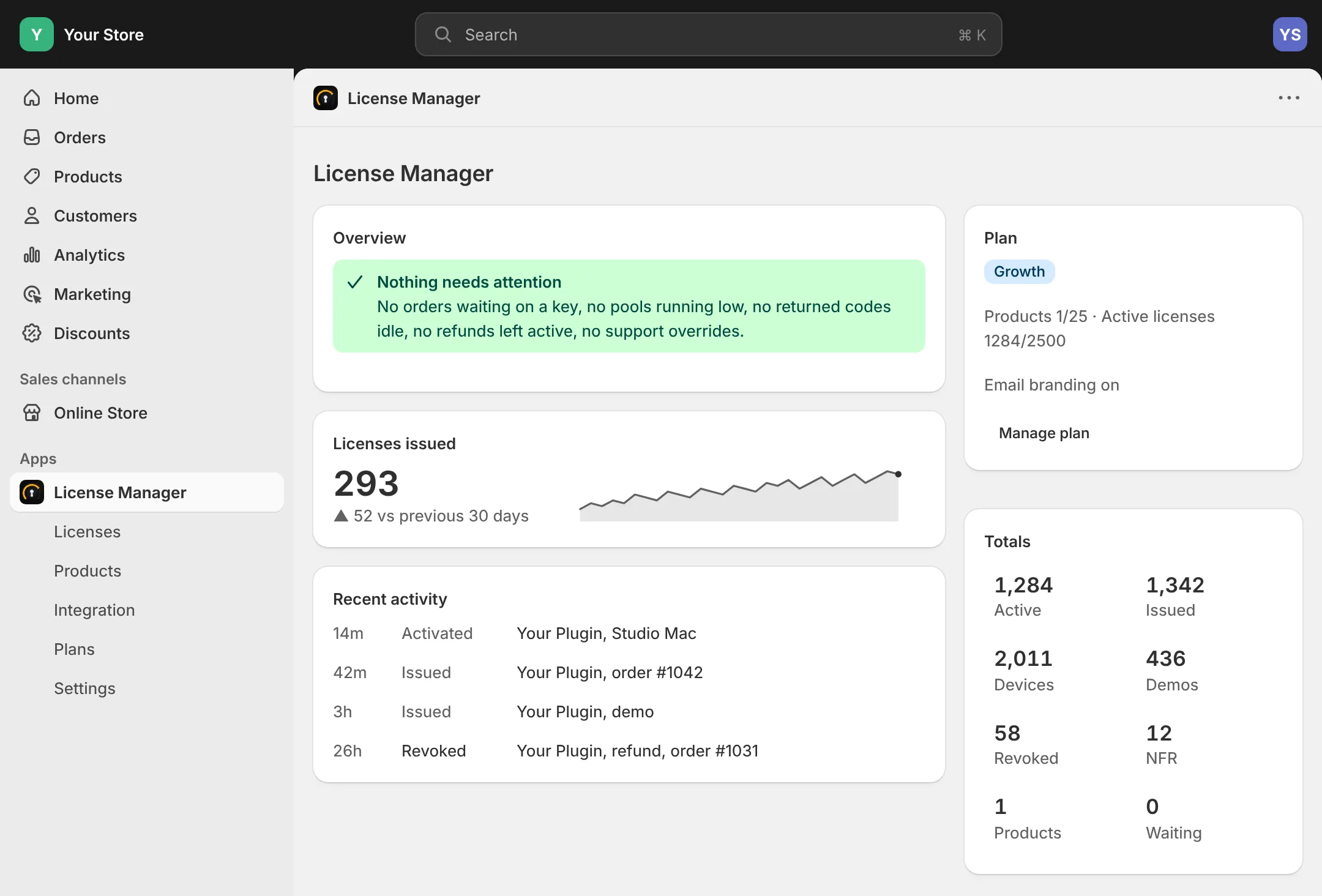
A dashboard shows the licenses you issued over the last 30 days, recent activations and refunds, and anything that needs you, like a product that has run out of pre-made codes. Most days it simply says nothing needs attention.

The plugin's Dashboard in WordPress: Nothing needs attention, 293 licenses issued in 30 days with a trend line, the licensed products table, recent activity and totals.
WordPress, Waveform › Dashboard.
The app's home screen in Shopify admin once set up: Nothing needs attention, 293 licenses issued in 30 days with a trend line, recent activity, the plan and totals.
Shopify admin, the app's home screen once you are set up.

For your customer

Nothing new to learn.

Your customers never make an account with us. They buy from your store the way they always have, and get a key from you.

01

The key arrives by email

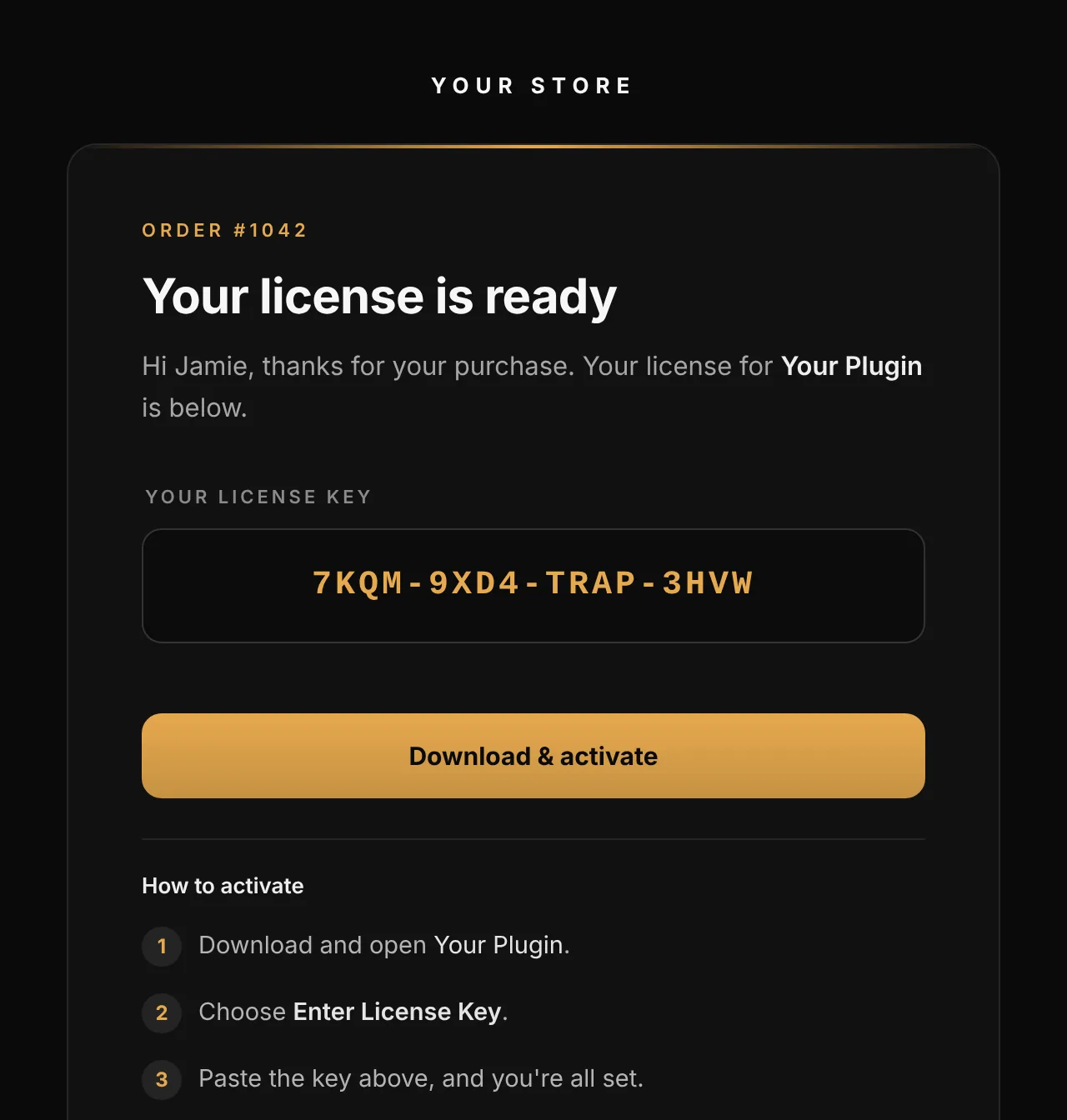
Seconds after checkout, your customer gets an email in your store's name, with your logo and colors: the key, a download button and three short steps to activate. The key is on their order too.The key is added to their order too.

The license email: Your license is ready, the key, a Download and activate button, and how to activate in three steps.
The stock email. Add your logo and accent color in the app or plugin.
02

Paste the key, or try a demo first

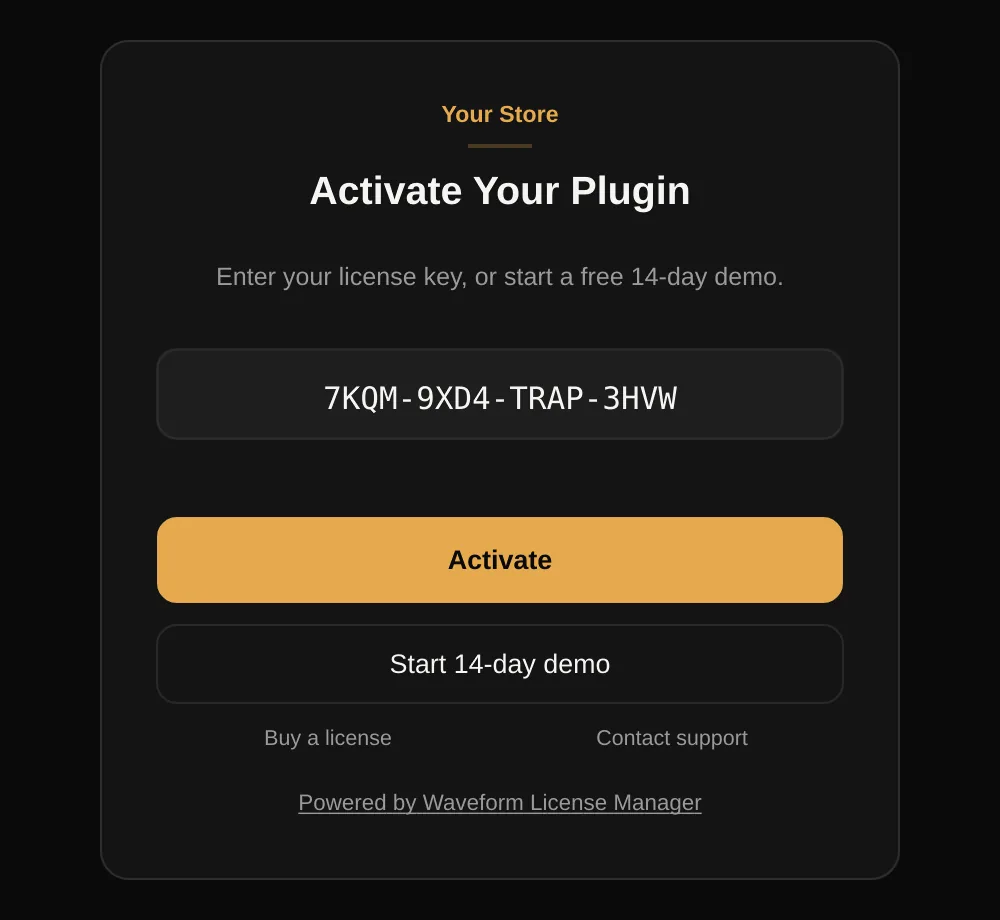
Inside your software, one screen does it all: paste the key to activate, or start a free demo with one click and no key at all. After that it works offline, with nothing running in the background and no helper app to install.

The activation screen inside a plugin: a license key field, an Activate button, a Start 14-day demo button and links to buy a license or contact support.
The activation screen your software shows, from our JUCE kit.
03

New computer? They sort it out themselves

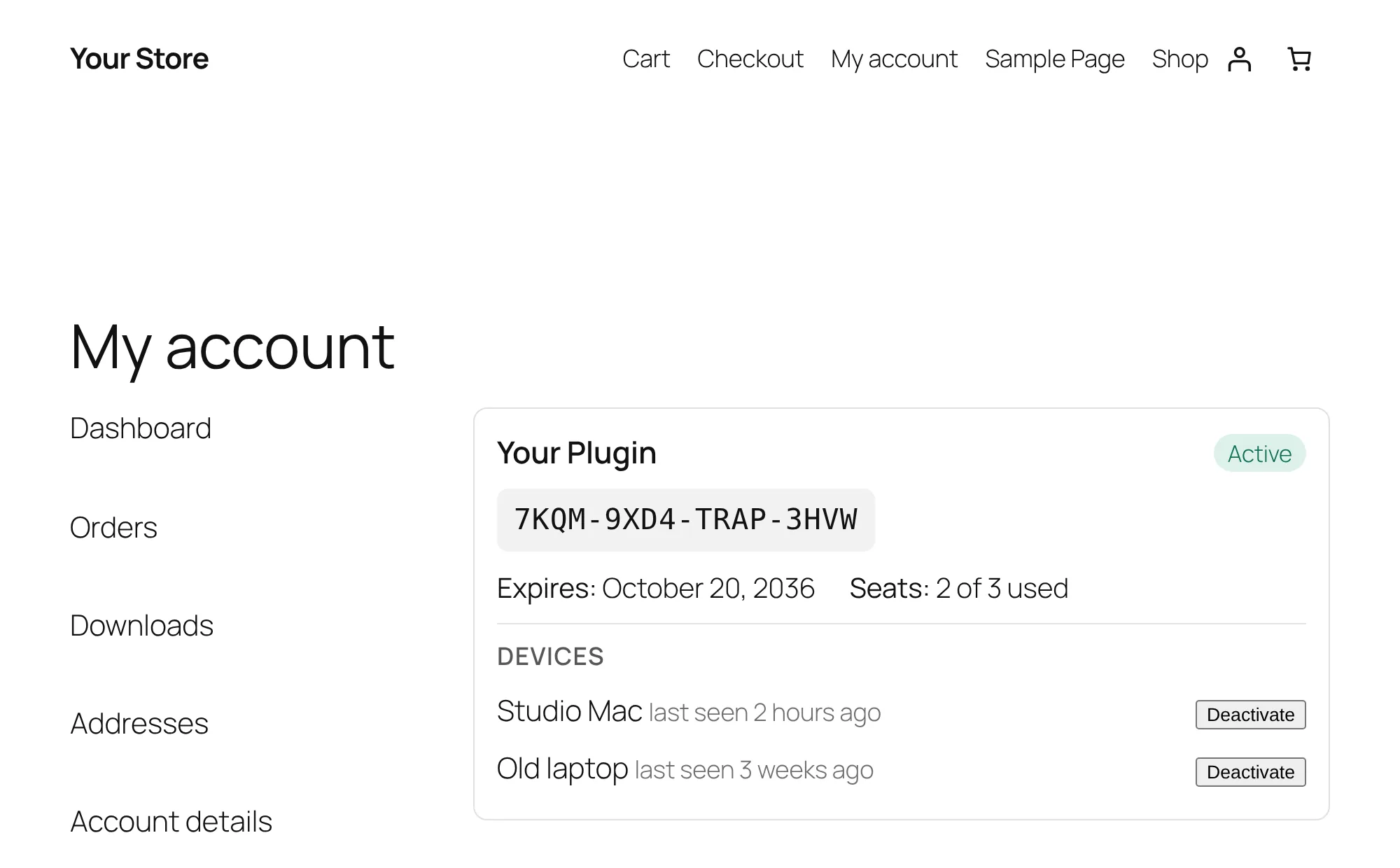
A Licenses tab appears in your store's My account area. Customers see each key, how many seats are in use, and every device, and can deactivate an old computer to free its seat. No support ticket.

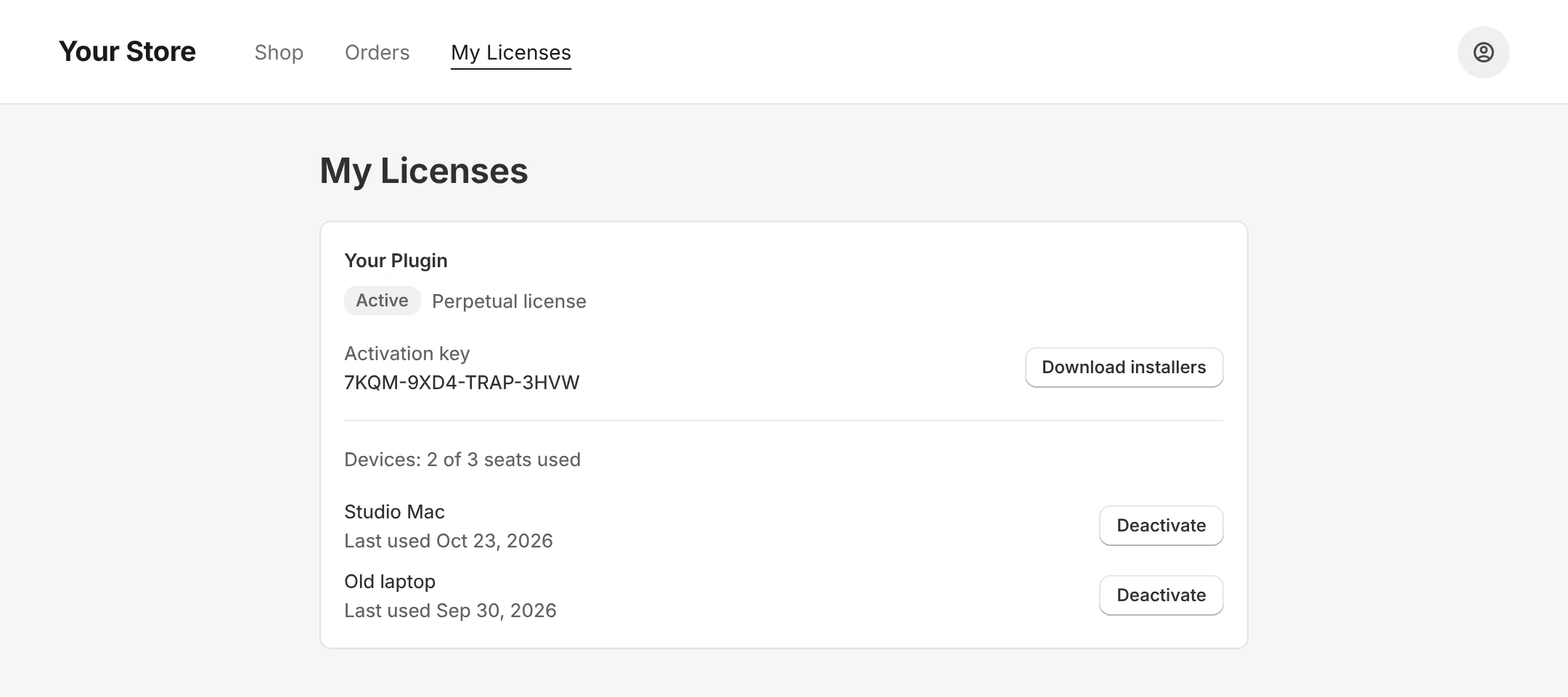
You add a My Licenses page to your store's customer account menu in a few clicks. Customers see each key, download installers, check which devices are in use, and deactivate an old computer to free its seat. No support ticket.

The Licenses tab in a WooCommerce My account page: a license card with the key, seats 2 of 3 used, and two devices, each with a Deactivate button.
Your store's My account page, Licenses tab.
The My Licenses page in a Shopify customer account: the activation key, a Download installers button, 2 of 3 seats used, and two devices, each with a Deactivate button.
Your store's customer account, My Licenses page.

Try it in your store

Free to start, on either platform.

The Free plan covers one product, with every screen on this page. Upgrade when you add more.